5/13/25
Justine Eng and Tracy Zhang (jse77 & tz72)
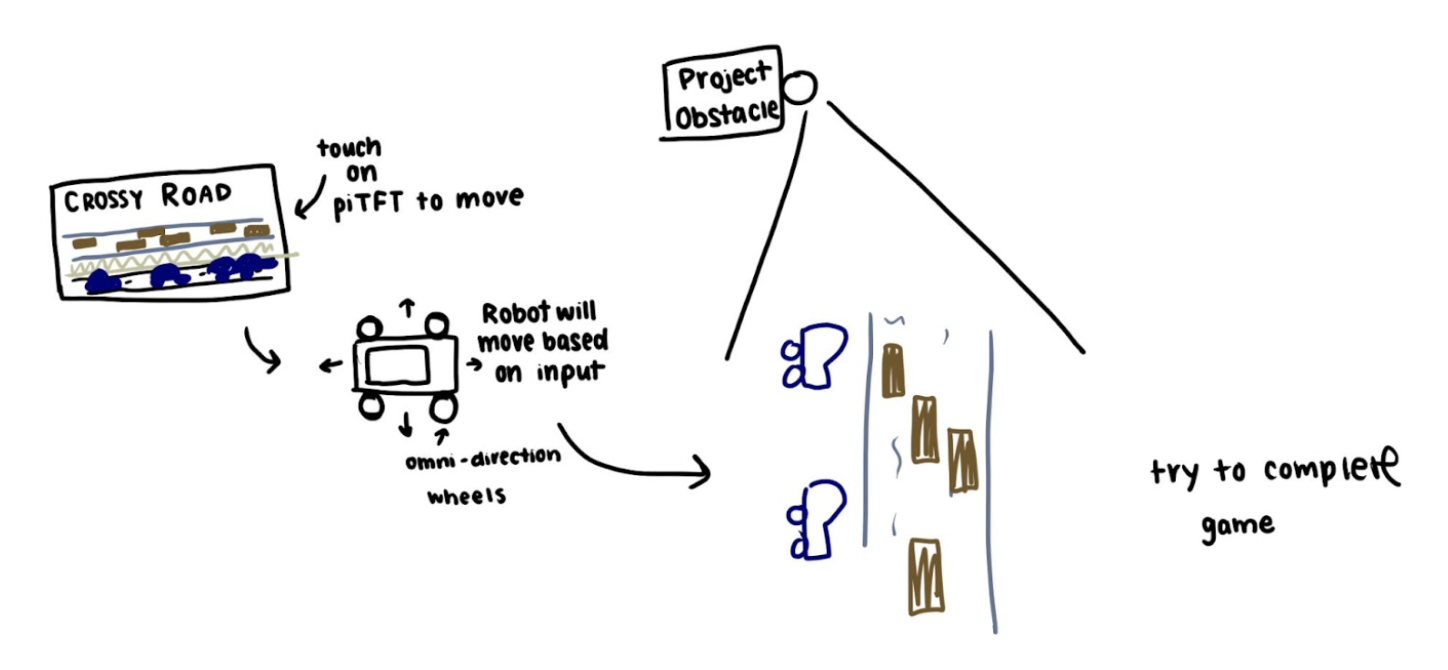
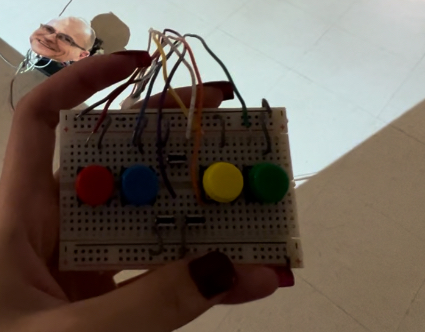
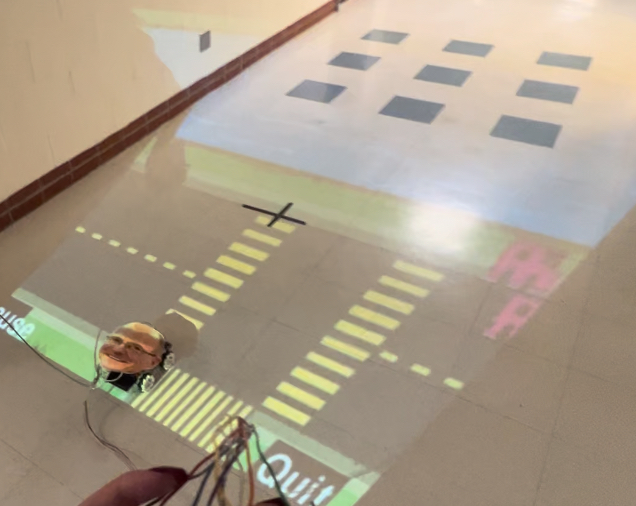
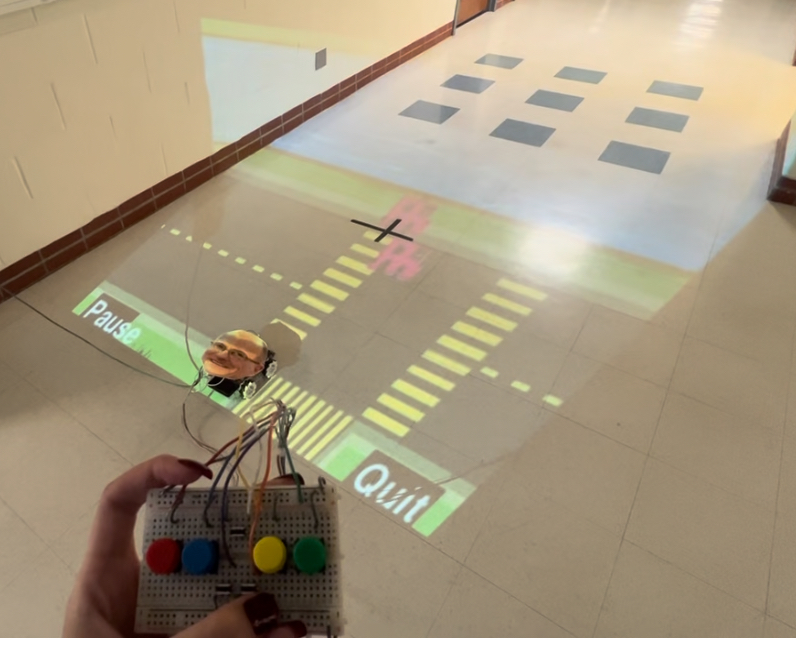
This project is a reimagination of the popular game “Crossy Road” where the objective is to get a car/figure to cross a road filled with moving obstacles. Our take on it is to incorporate the PiTFT screen and a robot car to make our own Pygame version. We will implement the crossy road game through a python script using Pygame, and we will use the PiTFT to display the game such as start, pause, displaying the game/score, etc. The input of the direction and forward/backwards movement will be the four GPIO pins that will each correspond to a movement. These are mounted on a physical game control we made with a bread board and colored buttons. The robot has to physically cross through the moving obstacles where the obstacles are a projection onto the floor. We will use omni-directional tires to allow our robot to move as controlled in the game above. The robot will be a physical representation of what is occurring on the screen, and will try to move through the course without touching any of the obstacles. We will also process on the Raspberry Pi whether or not something has hit the robot, and if that happens, the robot will go skidding off, simulating being hit by a car!
In week 1-2, we finalized our project idea, and brainstormed how to best execute the project. We started drawing the characters and coding up the game in python, but nothing was moving or being displayed yet. We had to do a lot of searching of how to create a game, making characters and making functions to create each of them in random places, but overall no major roadblocks since we have not gotten very far.
In week 2-3, we continued coding up the game in python. We were still working on integrating it into the pi, but have been coding the screen on the PiTFT and the start screen and GPIO input. We were working on the different parts we needed to get the game playable, and mainly focusing on the software and coding part. We added score counting and implemented object collision detection. We also coded the speed increasing as you complete each background. Getting the game functional has been a little difficult, and the GPIO buttons and screen working has been the most challenging.
In week 3-4, we have been debugging our code to get the game working on the pi. We added score counting onto the screen and got the GPIO buttons to work. We have started to work on adding code to implement incorporating our robot from lab 3 into the project and planned to continue that work. As an incremental building step, this week we have gotten the two-directional robot from Lab 3 to move in sync with our character in the game. This is our final testing step before we start adding on and building our omni-directional robot.
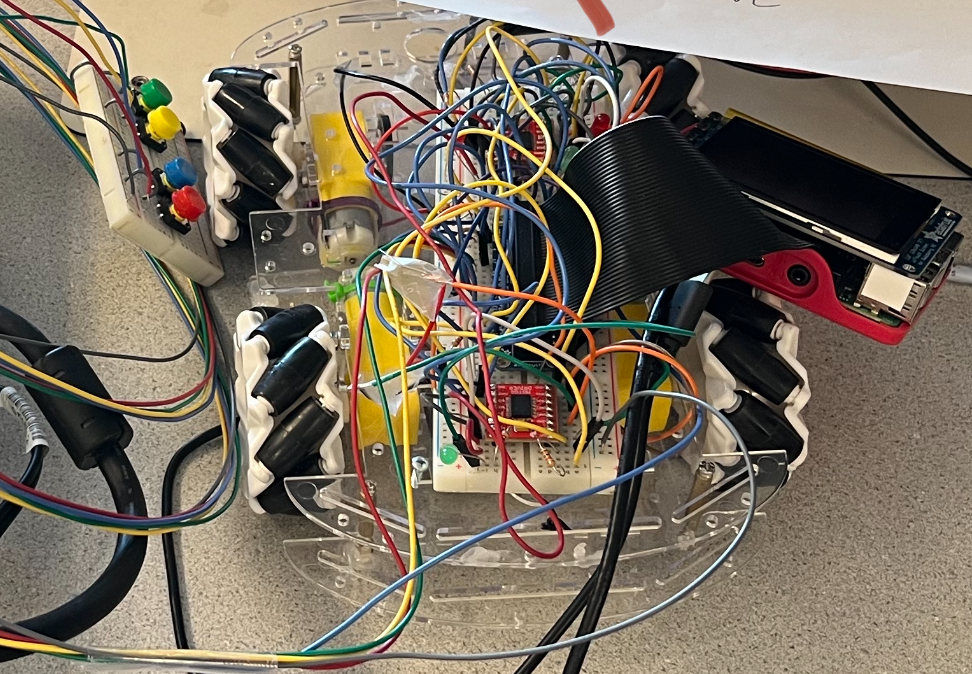
In the remainder of the lab before our final demo, we had a lot of work left. The first thing we did was to wire up our robot to get the omni-directional wheels working. We hooked up a second motor control and wired it accordingly, choosing free GPIO pins and testing as we went. We created python scripts to test each of the wheels, and wrote functions to make all the wheels spin forward, backwards, etc. We referenced the previous year’s omni-directional robot’s code for this, and we have credited this. The motors from the omni-directional robot had a lot of difficulty functioning properly because all of its wires kept snapping. The tops of them would break, and so when we checked on the wiring, oftentimes, we would just see a loose wire, and the other end of it was still in the breadboard but disconnected. With a little bit of taping wires, and a lot of checking on each motor, we ended up getting everything taped and connected. We had a little bit of a problem in this step, and about 4/5th way through our robot testing, two of our wheels just stopped moving. We spent about an hour debugging, but in the end had to call it for that lab session. Miraculously, when we came in the next day, without touching any of our code or wiring, the robot began moving as it had previously. This was a road block we ran into, but it was nothing major, just surprising and a little bit time-consuming since the robot and pi were just having some technical difficulties.
The following lab session, with our omni-directional robot moving well, we integrated it into our python script. This was relatively easy since we had a script that allowed us to move the robot, so we just called each of the respective functions when we detected a button press for moving the character. The only problem we ran into here is that every time we put away the robot and rewired it, the direction of each wheel changed, so we would adjust the script, using the left function for forward for example. Then, to make our game feel more like a game controller, we added on a breadboard with click buttons for the four directions, as well as a start, stop, and pause buttons for the rest of the game controls. We wired these to other free GPIO pins, which were harder to find since we had used so many of them. Adding the detection in our python script was simple, and the only issue we had was that we originally put it in a loop that was never entered, but after debugging that our new buttons worked well. We hooked this up, and this was relatively simple to execute and made our game a lot more fun to play with! We also hooked up a speaker to our raspberry pi, and the sounds with the buttons made the game awesome!
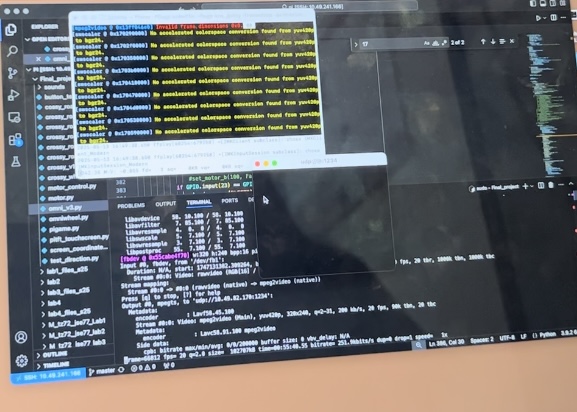
The next time we came in, we knew we wanted the game to be able to be displayed on the ground via a projector instead of just on the pi, so we worked on getting the Pygame screen to be able to run on our own computer that was ssh-ed into the pi. This way, we could hook up the projector via HDMI and project the game screen onto the ground. To do this, we went through many many iterations of trying to mirror the pi screen (fb1) to a monitor (fb0). After downloading many packages, the one we found to work was creating a UDP connection between the pi and the computer. To do this, in the ssh terminal of the pi, we ran “sudo ffmpeg -f fbdev -framerate 20 -i /dev/fb1 -f mpegts udp://10.49.82.170:1234” where 10.49.82.170 is IP address of our personal computer. Then, in personal terminal we ran “ffplay -fflags nobuffer -flags low_delay -framedrop -probesize 32 -analyzeduration 0 udp://@:1234” which caused a ffplay window to pop up which mirror our screen on the pi! It was important to add the low_delay flag into the command, because originally, it was taking about 5 seconds of delay time for the graphics to show up on our computer. However, with this tweak, the mirroring went much more smoothly.
With a way to now project our game on the floor, we moved onto getting the robot to move untethered to the power supplies and monitor. We slowly unplugged each element, starting with the mouse, keyboard, hdmi, ethernet, and monitor. We connected the power of the pi to a personal battery pack we brought in, and the motors were run with batteries from our lab 3 robot. We then took the time to resync the wheels, taping a red dot to each of them and adjusting each of their PWM to get them in sync and move all at the same rpm. We noticed during testing that one motor, specifically, our top left motor, seemed a bit weak. When we would pick the robot up, the wheel turned great, but on the ground with the weight of the speaker, pi, breadboard, battery pack, and batteries, it sometimes got stuck and caused our robot to move crooked since that wheel was unable to turn as well. Overall though, the robot was working, the game was playing, and all we had left was to get the projector set up.
The morning of our demo, we were planning on having Tracy up on a stool holding the projector while we drove the car through the game. We had practiced this the night before, but upon discussing with Prof Skovira, we decided to mount the projector instead. The display had to span about 10 tiles since our robot was about 1 time long, and we had 10 lanes we needed to navigate through for each of our levels. The first version we put it on the ceiling, but this was too small and only spanned about 3 tiles. The setup we settled on was on top of a display case with a few pieces of wood underneath it. We played the game a couple of times on the ground to make sure it worked, and then we were ready for our demo!
Everything performed smoothly and roughly as planned. We met the goals outlined in the description. For our final demo, we were able to show our robot playing the crossy road game, keeping score, moving with the button clicks, and pausing/quitting. Everything went relatively smoothly. Our small hiccup was that as mentioned before the front left wheel became weak over time, and was unable to support the heavy robot, and would sometimes cause the robot to veer off sideways. Our demo overall was successful, and we were able to show off full game play and the robot playing crossy road!
Our project was able to achieve what we set out to, which was a fully functional game of crossy road in real life. We were able to set up the projector, create a UDP connection from the raspberry pi to our laptop, then project the game onto the ground for the robot to play. The robot was able to be controlled with a game controller, with buttons that made the character go forward, backwards, left, and right. When we play the game, we press the start button on the controller to bring up the background with moving cars that you have to avoid. You can control the robot through traffic, pausing the game if you ever need a break, and the same button resumes the game play. When the robot passes a level, it plays a level up sound, and starts back at the beginning of the course. If you accidentally hit an obstacle midway through the level, the robot will go skidding off because it just got hit. Overall, the game worked well and the only thing that we realized would not work very well is trying to get the robot to do intricate motions. The omni directional wheels are very dependent on the day and time, so sometimes when we tested it one night it would go perfectly straight and left and right, and the next one of the motors would act up and cause our vehicle to go sideways and not be able to maneuver left or right properly. Overall though, the game worked well and was a lot of fun!
If we had more time to work on our project, we would definitely explore adding additional robots as the obstacles to make the game come to life even more. This would require a lot more raspberry pis, robots, and coordination. If we had more time, we could have spent longer on using lasers and sensors to ensure the wheels all could turn with the same power. We could also have switched out our front left motor since we only realized it was weaker than the rest of the motors less than a day before our final demo, and we did not want to create too many changes right before our final presentation.
tz72@cornell.edu
Coded crossy road game. Wired GPIO buttons and created controller. Configured projector to simulate real game play. Tested the system.
jse77@cornell.edu
Coded crossy road game & drew graphics. Built robot and wired motor control. Created connection between Rasp Pi and laptop. Tested the system.
1
2
3
4
5
6
7
8
9
10
11
12
13
14
15
16
17
18
19
20
21
22
23
24
25
26
27
28
29
30
31
32
33
34
35
36
37
38
39
40
41
42
43
44
45
46
47
48
49
50
51
52
53
54
55
56
57
58
59
60
61
62
63
64
65
66
67
68
69
70
71
72
73
74
75
76
77
78
79
80
81
82
83
84
85
86
87
88
89
90
91
92
93
94
95
96
97
98
99
100
101
102
103
104
105
106
107
108
109
110
111
112
113
114
115
116
117
118
119
120
121
122
123
124
125
126
127
128
129
130
131
132
133
134
135
136
137
138
139
140
141
142
143
144
145
146
147
148
149
150
151
152
153
154
155
156
157
158
159
160
161
162
163
164
165
166
167
168
169
170
171
172
173
174
175
176
177
178
179
180
181
182
183
184
185
186
187
188
189
190
191
192
193
194
195
196
197
198
199
200
201
202
203
204
205
206
207
208
209
210
211
212
213
214
215
216
217
218
219
220
221
222
223
224
225
226
227
228
229
230
231
232
233
234
235
236
237
238
239
240
241
242
243
244
245
246
247
248
249
250
251
252
253
254
255
256
257
258
259
260
261
262
263
264
265
266
267
268
269
270
271
272
273
274
275
276
277
278
279
280
281
282
283
284
285
286
287
288
289
290
291
292
293
294
295
296
297
298
299
300
301
302
303
304
305
306
307
308
309
310
311
312
313
314
315
316
317
318
319
320
321
322
323
324
325
326
327
328
329
330
331
332
333
334
335
336
337
338
339
340
341
342
343
344
345
346
347
348
349
350
351
352
353
354
355
356
357
358
359
360
361
362
363
364
365
366
367
368
369
370
371
372
373
374
375
376
377
378
379
380
381
382
383
384
385
386
387
388
389
390
391
392
393
394
395
396
397
398
399
400
401
402
403
404
405
406
407
408
409
410
411
412
413
414
415
416
417
418
419
420
### To use projector ###
# In ssh terminal put in
# sudo ffmpeg -f fbdev -framerate 20 -i /dev/fb1 -f mpegts udp://10.49.82.170:1234
# where 10.49.82.170 is IP address of personal computer
# In personal terminal run
# ffplay -fflags nobuffer -flags low_delay -framedrop -probesize 32 -analyzeduration 0 udp://@:1234
import pygame
from pygame.locals import *
import time
import pigame
import RPi.GPIO as GPIO
import sys
import os
import random
os.putenv('SDL_VIDEODRV','fbcon')
os.putenv('SDL_FBDEV', '/dev/fb1')
os.putenv('SDL_MOUSEDRV','dummy')
os.putenv('SDL_MOUSEDEV','/dev/null')
os.putenv('DISPLAY','')
GPIO.setmode(GPIO.BCM)
GPIO.setup(17, GPIO.IN, pull_up_down=GPIO.PUD_UP) # Forward
GPIO.setup(22, GPIO.IN, pull_up_down=GPIO.PUD_UP) # Backward
GPIO.setup(23, GPIO.IN, pull_up_down=GPIO.PUD_UP) # Left
GPIO.setup(27, GPIO.IN, pull_up_down=GPIO.PUD_UP) # Right
GPIO.setup(25, GPIO.IN, pull_up_down=GPIO.PUD_UP) # Start : 25
GPIO.setup(4, GPIO.IN, pull_up_down=GPIO.PUD_UP) # Pause : 4
GPIO.setup(24, GPIO.IN, pull_up_down=GPIO.PUD_UP) # Quit : 24
M1_IN1 = 5
M1_IN2 = 6
M1_PWM = 21
M2_IN1 = 12
M2_IN2 = 19
M2_PWM = 16
M3_IN1 = 26
M3_IN2 = 13
M3_PWM = 20
M4_IN1 = 11
M4_IN2 = 10
M4_PWM = 9
running = True
paused = False
start_time = time.time()
forward = False
backward = False
left = False
right = False
GPIO.setup(M1_IN1, GPIO.OUT)
GPIO.setup(M1_IN2, GPIO.OUT)
GPIO.setup(M1_PWM, GPIO.OUT)
GPIO.setup(M2_IN1, GPIO.OUT)
GPIO.setup(M2_IN2, GPIO.OUT)
GPIO.setup(M2_PWM, GPIO.OUT)
GPIO.setup(M3_IN1, GPIO.OUT)
GPIO.setup(M3_IN2, GPIO.OUT)
GPIO.setup(M3_PWM, GPIO.OUT)
GPIO.setup(M4_IN1, GPIO.OUT)
GPIO.setup(M4_IN2, GPIO.OUT)
GPIO.setup(M4_PWM, GPIO.OUT)
pm1 = GPIO.PWM(M1_PWM, 1000)
pm1.start(0)
pm2 = GPIO.PWM(M2_PWM, 1000)
pm2.start(0)
pm3 = GPIO.PWM(M3_PWM, 1000)
pm3.start(0)
pm4 = GPIO.PWM(M4_PWM, 1000)
pm4.start(0)
def setLeft():
GPIO.output(M1_IN1, GPIO.HIGH)
GPIO.output(M1_IN2, GPIO.LOW)
GPIO.output(M2_IN1, GPIO.LOW)
GPIO.output(M2_IN2, GPIO.HIGH)
GPIO.output(M3_IN1, GPIO.HIGH)
GPIO.output(M3_IN2, GPIO.LOW)
GPIO.output(M4_IN1, GPIO.HIGH)
GPIO.output(M4_IN2, GPIO.LOW)
def setRight():
GPIO.output(M1_IN1, GPIO.LOW)
GPIO.output(M1_IN2, GPIO.HIGH)
GPIO.output(M2_IN1, GPIO.HIGH)
GPIO.output(M2_IN2, GPIO.LOW)
GPIO.output(M3_IN1, GPIO.LOW)
GPIO.output(M3_IN2, GPIO.HIGH)
GPIO.output(M4_IN1, GPIO.LOW)
GPIO.output(M4_IN2, GPIO.HIGH)
def setBackward():
GPIO.output(M1_IN1, GPIO.HIGH)
GPIO.output(M1_IN2, GPIO.LOW)
GPIO.output(M2_IN1, GPIO.HIGH)
GPIO.output(M2_IN2, GPIO.LOW)
GPIO.output(M3_IN1, GPIO.LOW)
GPIO.output(M3_IN2, GPIO.HIGH)
GPIO.output(M4_IN1, GPIO.HIGH)
GPIO.output(M4_IN2, GPIO.LOW)
def setForward():
GPIO.output(M1_IN1, GPIO.LOW)
GPIO.output(M1_IN2, GPIO.HIGH)
GPIO.output(M2_IN1, GPIO.LOW)
GPIO.output(M2_IN2, GPIO.HIGH)
GPIO.output(M3_IN1, GPIO.HIGH)
GPIO.output(M3_IN2, GPIO.LOW)
GPIO.output(M4_IN1, GPIO.LOW)
GPIO.output(M4_IN2, GPIO.HIGH)
def setDutyCycle(Duty):
if Duty == 0:
pm1.ChangeDutyCycle(0)
pm2.ChangeDutyCycle(0)
pm3.ChangeDutyCycle(0)
pm4.ChangeDutyCycle(0)
else:
pm1.ChangeDutyCycle(95)
pm2.ChangeDutyCycle(96)
pm3.ChangeDutyCycle(96)
pm4.ChangeDutyCycle(94)
pygame.init()
pitft = pigame.PiTft()
pygame.mouse.set_visible(False)
FPS = 10
my_clock = pygame.time.Clock()
LANE_HEIGHT = 24
NUM_LANES_VISIBLE = 8
VEHICLE_WIDTH = 32
VEHICLE_HEIGHT = 24
INITIAL_VEHICLE_SPEED = 1
INITIAL_MOVE_COOLDOWN = 100
DIFFICULTY_INCREASE_RATE = 2
GREEN = (0, 255, 0)
BLACK = (0, 0, 0)
RED = (255, 0, 0)
WHITE = (255, 255, 255)
WIDTH, HEIGHT = 320, 240
screen = pygame.display.set_mode((WIDTH, HEIGHT))
font = pygame.font.Font(None, 36)
font_score = pygame.font.Font(None, 30)
pause_button = pygame.Rect(10, HEIGHT - 20, 45, 25)
quit_button = pygame.Rect(WIDTH - 55, HEIGHT - 20, 45, 25)
move_sound = pygame.mixer.Sound("./sounds/move.wav")
collision_sound = pygame.mixer.Sound("./sounds/collision.wav")
level_up_sound = pygame.mixer.Sound("./sounds/level_up.wav")
pygame.mixer.music.load("./sounds/background_music.mp3")
character_filename = "./images/character.png"
car_filename = "./images/our_car.png"
background_filenames = [
"./images/our_background1.png",
"./images/our_background2.png",
"./images/our_background3.png",
"./images/our_background4.JPG",
"./images/our_background5.png",
]
char_image = pygame.image.load(character_filename).convert_alpha()
char_image = pygame.transform.scale(char_image, (24, 24))
car_image = pygame.image.load(car_filename).convert_alpha()
car_image = pygame.transform.scale(car_image, (VEHICLE_WIDTH, VEHICLE_HEIGHT))
background_images = [
pygame.transform.scale(
pygame.image.load(filename).convert_alpha(), (WIDTH, HEIGHT)
)
for filename in background_filenames
]
current_background_index = 0
class Character(pygame.sprite.Sprite):
def __init__(self):
super().__init__()
self.image = char_image
self.rect = self.image.get_rect(center=(WIDTH // 2, HEIGHT - 20))
self.last_move_time = 0
self.score = 0
self.move_cooldown = INITIAL_MOVE_COOLDOWN
self.move_sound = move_sound
def can_move(self):
current_time = pygame.time.get_ticks()
if current_time - self.last_move_time >= self.move_cooldown:
self.last_move_time = current_time
return True
return False
def move(self, direction):
if self.can_move():
self.move_sound.play()
if direction == "UP":
self.rect.y -= LANE_HEIGHT
self.score += 1
print(self.score)
elif direction == "DOWN":
self.rect.y += LANE_HEIGHT
self.score -= 1
elif direction == "LEFT":
self.rect.x -= LANE_HEIGHT
elif direction == "RIGHT":
self.rect.x += LANE_HEIGHT
class Vehicle(pygame.sprite.Sprite):
def __init__(self, lane, x, speed):
super().__init__()
self.image = car_image
self.rect = self.image.get_rect()
self.rect.x = x
self.rect.y = lane * LANE_HEIGHT
self.speed = speed
def update(self):
self.rect.x += self.speed
if self.rect.x > WIDTH:
self.rect.x = -VEHICLE_WIDTH # reset position to simulate continuous flow
# reset game
def reset_game(
vehicles,
all_sprites,
char=None,
vehicle_speed=INITIAL_VEHICLE_SPEED,
initial_vehicles=1,
):
vehicles.empty()
# setDutyCycle(0)
all_sprites.empty()
if char is None:
char = Character()
else:
char.rect.center = (WIDTH // 2, HEIGHT - 20)
all_sprites.add(char)
for lane in range(NUM_LANES_VISIBLE - 2):
for _ in range(random.randint(0, initial_vehicles)): # num vehicles per lane
x = random.randint(0, WIDTH)
vehicle = Vehicle(lane, x, vehicle_speed)
vehicles.add(vehicle)
all_sprites.add(vehicle)
return char, vehicles, all_sprites
def show_start_screen():
screen.fill(WHITE)
text = font.render("Tap to Play", True, BLACK)
text_rect = text.get_rect(center=(WIDTH // 2, HEIGHT // 2))
# text_rect.inflate(100,100)
screen.blit(text, text_rect)
pygame.display.update()
return text_rect
# Show the screen
text_box = show_start_screen()
running = True
game_started = False
while running:
pitft.update()
if GPIO.input(24) == GPIO.LOW:
print("button press: 24, quit")
running = False
elif GPIO.input(4) == GPIO.LOW:
print("button press: 4, pause")
paused = not paused
elif not game_started and GPIO.input(25) == GPIO.LOW:
print("button press: 25, start")
game_started = True
if game_started:
if 'skovira' not in locals():
# Initialize game on first frame
vehicle_speed = INITIAL_VEHICLE_SPEED
initial_vehicles = 1
skovira, vehicles, all_sprites = reset_game(
pygame.sprite.Group(),
vehicle_speed=vehicle_speed,
initial_vehicles=initial_vehicles,
)
if not paused:
# --- GPIO Movement Controls ---
if GPIO.input(17) == GPIO.LOW: # UP
skovira.move("UP")
setDutyCycle(100)
setRight()
time.sleep(.6)
setDutyCycle(0)
if GPIO.input(22) == GPIO.LOW: # DOWN
skovira.move("DOWN")
setDutyCycle(100)
setLeft()
time.sleep(.6)
setDutyCycle(0)
if GPIO.input(23) == GPIO.LOW: # LEFT
skovira.move("LEFT")
setDutyCycle(100)
setBackward()
time.sleep(1)
setDutyCycle(0)
if GPIO.input(27) == GPIO.LOW: # RIGHT
skovira.move("RIGHT")
setDutyCycle(100)
setForward()
time.sleep(1)
setDutyCycle(0)
# --- Update Game State ---
vehicles.update()
if pygame.sprite.spritecollideany(skovira, vehicles):
collision_sound.play()
print("hit")
setDutyCycle(100)
setForward()
time.sleep(6)
setDutyCycle(0)
skovira.score = 0
current_background_index = 0
vehicle_speed = INITIAL_VEHICLE_SPEED
initial_vehicles = 1
skovira, vehicles, all_sprites = reset_game(
vehicles,
all_sprites,
vehicle_speed=vehicle_speed,
initial_vehicles=initial_vehicles,
)
if skovira.rect.y <= -1:
level_up_sound.play()
print("new level!")
setDutyCycle(100)
setLeft()
time.sleep(6)
setDutyCycle(0)
skovira, vehicles, all_sprites = reset_game(
vehicles, all_sprites, skovira, vehicle_speed, initial_vehicles
)
current_background_index = (current_background_index + 1) % len(
background_images
)
vehicle_speed *= 1 + DIFFICULTY_INCREASE_RATE
initial_vehicles = min(NUM_LANES_VISIBLE, initial_vehicles + 1)
screen.blit(background_images[current_background_index], (0, 0))
all_sprites.draw(screen)
# Print the score
score_text = font_score.render(f"{skovira.score}", True, BLACK)
score_rect = score_text.get_rect(topright=(WIDTH - 10, 10))
screen.blit(score_text, score_rect)
# Draw Pause and Quit
pygame.draw.rect(screen, BLACK, quit_button)
pygame.draw.rect(screen, BLACK, pause_button)
quit_text = font_score.render("Quit", True, WHITE)
pause_text = font_score.render("Pause" if not paused else "Play", True, WHITE)
screen.blit(quit_text, quit_button.move(3, 3))
screen.blit(pause_text, pause_button.move(2, 3))
pygame.display.flip()
my_clock.tick(FPS)
del pitft
GPIO.cleanup()
pygame.quit()
sys.exit()